A place for Lizzie Fragale, the technology teacher coach at River Eves Elementary school, to write app reviews, provide web resources, and any other pertinent information.
Today, Wednesday, March 5, select 4th grade students will be attending a VIRTUAL field trip to Google Headquarters in California! This field trip, sponsored by Discovery Education, is in support of the Doodle 4 Google contest (find more information about THAT here). This AWESOME opportunity is interactive as students are able to ask the Google Doodlers questions about their job, their doodles, and life at Google. We are all very excited about his opportunity. You can learn more about our field trip and even watch the broadcast at the following link: From Sketches to the Google Homepage
Today's Instructional Technology Committee Meeting will focus on the third NETS standard, "Research and Information Fluency." Below you will find information and notes to help teachers meet this standard. Documentation will be due by the end of February.
The ISTE Standard for Research and Information Fluency (#3) includes the following description:
Students apply digital tools to gather, evaluate, and use information.
Plan strategies to guide inquiry.
Locate, organize, analyze, evaluate, synthesize, and ethically use information from a variety of sources and media
Evaluate and select information sources and digital tools based on the appropriateness to specific tasks
Process data and report results
Most of us teachers will complete some sort of research project with our students at some point in the school year. This is a great way to meet this standard. Below, you will find some FABULOUS resources to help you in the process.
According to their website, "Infotopia is an academic search engine accessing only trusted websites previously selected by librarians, teachers, and library and educational consortia. Infotopia is recommended for students, teachers, and, especially, homeschoolers." This is a great way to minimize those moments where students find inappropriate material by just using google to search.
* iBrainstorm App
The iBrainstorm App is simply a blank canvas that can serve as a way to prewrite and plan essays, projects, etc. You can simply draw with your finger or you can add sticky notes. Once you've completed your brainstorming, you can easily share your plans via email or saving the image as a photo on your device. I really see this as beneficial for upper grades in collaboration and group work.
In my classroom, I was always a big fan of WebQuests as an easy way to meet the research standard on a more regular basis and introduce a new subject matter in a more exciting way. I have since discovered Zunal which is an online WebQuest builder and even better, a source for finding WebQuests that have already been made for you! You can search by grade level (either K-2 or 3-5) AND subject area. I would suggest browsing around to see if one can work for you. Love, LOVE it. Also, listed below, I have three other EASY WebQuest ideas. As an ELA teacher, I get so excited about March and Dr. Seuss's Birthday. Hopefully, you do too :)
Dr. Seuss WebQuest for Non or Early Readers - I was inspired by this link which requires students to simply use Google image as a search engine to match the Seuss character with the appropriate book title. If this seems like something that would be of interest to your class, just let me know, and I can create a worksheet for the kids.
The Rhyming Man: Dr. Seuss and His Books - This WebQuest is already linked to the standards and completely finished for you. The focus of this WebQuest is 1st-3rd Language Arts. It is well-planned but seems like it would need quite a few days to complete the entire project.
Dr. Seuss WebQuest for Older Students - Here is a link to a WebQuest that is already created that looks at the biography of Seuss and has students answer questions. Link: Seuss WebQuest
I am new to Wonderopolis, but I think I am in love. Every day, the site poses an intriguing question and explores it in a variety of ways. According to the website, "with multi-disciplinary content that purposefully aligns to Common Core State Standards (CCSS), the STEM Educational Quality Framework, and Bloom’s Digital Taxonomy, we’ve earned a place in K-12 curriculum and in classrooms worldwide. Teachers can use the daily Wonder to jumpstart their students’ critical thinking, or dip into our ever-growing collection of Wonders for content that relates to specific themes and student interests." There is even an educator resource ( here ) where teachers can search for content based upon common core standards and grade level. *I thought this one would be great for today: http://wonderopolis.org/wonder/have-you-ever-been-in-a-spelling-bee/
My idea for a quick and easy way to incorporate this resource into your classroom would be to have a "Wonder Wednesday" every week where you explore questions the students have or simply open the website and see what the wonder of the day is. Then, you can have authentic conversations with students in which you discuss how to find answers, brainstorm, and even research. Pretty cool!
Here is an example from a teacher's classroom that she uploaded on her Twitter account.
* Evernote
I know that I seem to keep coming back to Evernote, but it is just because I LOVE it. In regards to research, Evernote is a great way to keep track of information and easily share it with classmates, teachers, and parents. A teacher can simply create a folder for each child in which she can take notes, copy links, etc. At the end of the period, these notes are sent to parents or a partner if collaborating, and saved in the Evernote folder. Or if the student has a unique login, she can access her notes from iPad, computer, or any other device with the Evernote app.
If you have any other research resources that you want to share, please send me an email at Fragale@fultonschools.org. Have a great day!
To review this resource, I will give
it the "FRAGALE 5."
1. What? (A brief overview of what the resource does)
According to the
Skype in the Classroom website, Skype is a software that allows you to speak to, see and instant message
other people who have Skype accounts wherever they are in the world. It is an
application you download which allows you to make calls and send messages via
the internet. In the classroom, Skype can be used to collaborate with other
classes, no matter where they are; find guest speakers and invite them into
your classroom; and take a virtual field trip anywhere in the world.
2. Who? (Audience, which grade levels can really benefit from this resource?)
Skype can be used in every classroom. In our school, classes have held “Mystery
Skype” lessons, collaborated across the globe, and even taken a virtual field
trip to the Channel 5 News Studio! This is NOT a resource for only upper grades
– it is really for everyone J
3. Where? (In what learning context would this resource be relevant?)
Below, I have listed some ways to use Skype in the classroom. This is just a
sample of some ways to use the resource, but really the possibilities are
endless!
·“Mystery Skype” - a lesson in geography, research,
and collaboration to determine the location of the class with which you are
Skyping.
·Virtual Field Trip - visit a zoo, museum,
explore oceans, mountains, and faraway places – no money, buses, or parent
permission forms required!
·Guest Speakers - connect with an author,
historian, or an expert of some kind to learn more about a particular subject.
·Literature Circle - meet with another class to
discuss a reading assignment.
·Story Hour - be the readers or the listeners in
your own online “Story Time.” I’ve seen this used for ‘Read Across America’ on
Dr. Seuss’s Birthday and one idea that I absolutely LOVED was having a “Grand-Friends
and Fairytales Reading Hour,” a time for elementary classes and elderly people
in the community to connect and share with each other.
4. Why? (How can this REALLY help me?)
Using Skype in the classroom can really transform the way you reach
children. It has the possibility to take students places they have never been
and teach them in ways that seemed impossible. It is FREE which just makes everything
better, and with the use of AirServer, Skype can be projected on your
interactive whiteboard without any cords!
In closing, I will leave you with a video that gives a brief introduction to
a “Mystery Skype” lesson from a Connecticut news program. Enjoy, and have a
great holiday J
To review this resource, I will give
it the "FRAGALE 5."
1. What? (A brief overview of what the resource does)
According to the website, AirServer is an AirPlay receiver for Mac and PC.
It allows you to receive AirPlay feeds, similar to an Apple TV, so you can
stream content or Mirror your display from your iOS devices or Macs running
Mountain Lion or Mavericks. In regards to the classroom, AirServer allows
teachers to show content and to the class and engage students using an iPad. With
AirServer you can wirelessly beam your iPad display to your Mac or PC and from
there to your projector or interactive whiteboard. This gives you the freedom to
move around the class with your iPad in hand. * AirServer also supports
multiple simultaneous connections, so one or more students could mirror their
iPads to share their ideas and their work with the rest of the class.
2. Who? (Audience, which grade levels can really benefit from this
resource?)
All grade levels can benefit from using AirServer. If you use the iPad in
that subject area, you will LOVE AirServer. This could be anything as basic as
a game to a higher order thinking “product creation” app like Educreations or
VoiceThread.
3. Where? (In what learning context would this resource be relevant?)
This resource would really work in any learning context. AirServer could display a math problem solving app
during one part of your day. Later, AirServer can allow the teacher to move
around the classroom while displaying a dramatic presentation of a text in
reading. Furthermore, AirServer gives teachers the ability to FaceTime and
Skype using the projector, thus involving the entire classroom and allowing
them to actively participate.
4. Why? (How can this REALLY help me?)
AirServer gives teachers the freedom to move around the room (manage
behavior!) while manipulating the interactive whiteboard. In this regards, the
iPad becomes like a slate giving the classroom projector access to all of the
wonderful tools that you can use on the iPad.
5. How? (Basic instructions)
You can find a starter guide for AirServer here. I will be activating every class’s AirServer account if I haven’t already
done so. During this time, I will also give
you a tutorial. If I have not already done so, please schedule a meeting with
me at your convenience - simply fill out a Technology Coach Request form on my
website (https://sites.google.com/site/reestechcenter/teacher-technology-center-requests).
In closing, I will leave you with a video that gives a brief introduction to
AirServer. Enjoy, and have a great week J
To review this resource, I will give
it the "FRAGALE 5."
1. What? (A brief overview of what the resource does)
According to the website, Educreations
is a recordable interactive whiteboard that captures your voice and handwriting
to produce video lessons that you can share online. Students, colleagues,
parents, and really anyone (given a permission like a login or a link) can
replay your lessons in any web browser, or from within our app on their iPads.
2. Who? (Audience, which grade levels can really benefit from this
resource?)
All grade levels can benefit from using Educreations. This product creating
app is fantastic for both students and teachers to use. It is fairly user
friendly, and, in our school, I have personally seen Kindergarten, Third, and
Fifth really utilize this wonderful resource.
3. Where? (In what learning context would this resource be relevant?)
This resource would really work in any classroom as a way for teachers and
students to create presentations, therefore demonstrating higher level
thinking. Also, this resource could
be a great way to keep track of classroom instruction, providing you with the
opportunity to then upload the lesson onto a blog for student review.This could give absent students access to
missed instructional time and even differentiate for struggling learners.
4. Why? (How can this REALLY help me?)
This app is an easy and effective way to boost student
interest and activate genuine excitement about learning. Also, this technology
will help teachers organize teaching and differentiation, a great way to show
just what a dedicated teacher you are. In addition to personally created
presentations, there is also a public directory (http://www.educreations.com/browse/)
that displays other teachers’ presentations from which you can borrow and use
to address the wide range of learners in our classrooms.
5. How? (Basic instructions)
You can find a starter guide for Educreations here (http://www.cvisd.org/cms/lib/TX01001642/Centricity/Domain/23/PDF/educreations.pdf).
I am also available to give you a
tutorial at your convenience - simply fill out a Technology Coach Request form
on my website (https://sites.google.com/site/reestechcenter/teacher-technology-center-requests).
In all honesty, there are some little quirks with Educreations. To create a
lesson, you MUST record audio and the lesson must be completed in one sitting.
You are NOT able to save and finish the work at a later time. However, with a
little practice and patience, Educreations can really become a favorite app in
the classroom.
In closing, I will leave you with a video that gives you a hands-on look at
Educreations in a first grade classroom. It’s pretty amazing! Enjoy J
This week, in addition to LOVING Google Drive, I have fallen in love (again) with Skype. Skype in the Classroom is amazing, just an overwhelmingly fantastic resource for educators. As an ELA teacher, however, one assignment really struck a chord with me - A Skype Chat with an Author! How amazing would that be - you read a book and then have an interactive lesson where you are able to interview the author. This virtual field trip would be amazing for all grade levels. Below, you will find a link to a list of authors who are willing to participate in this activity. ENJOY!
RESOURCE OF THE WEEK: Google Drive (formerly known as Google Docs)
To review this resource, I will give it the "FRAGALE 5."
1. What? (A brief overview of what the resource does)
According to Google, Google Drive (in particular, Apps for Education) provides "free web-based email, calendar & documents for collaborative study anytime, anywhere." Furthermore, the "website and document creation tools offer real-time editing, powerful sharing controls, and seamless compatibility – an ideal environment for learning in the 21st century." *For more infomration, go to this link.
2. Who? (Audience, which grade levels can really benefit from this resource?)
Really all grade levels can use this, though I see it especially beneficial for older students who can collaborate, give feedback, peer review, and even complete group work all stored in one location.
3. Where? (In what learning context would this resource be relevant?)
This resource would really work in any classroom as a teacher can create a class account and store student documents, quizzes, polls, blogs, etc. This brings parents, students, and teachers together for easy access and input. Participants can work together to learn, review, assess, and even create.
4. Why? (How can this REALLY help me?)
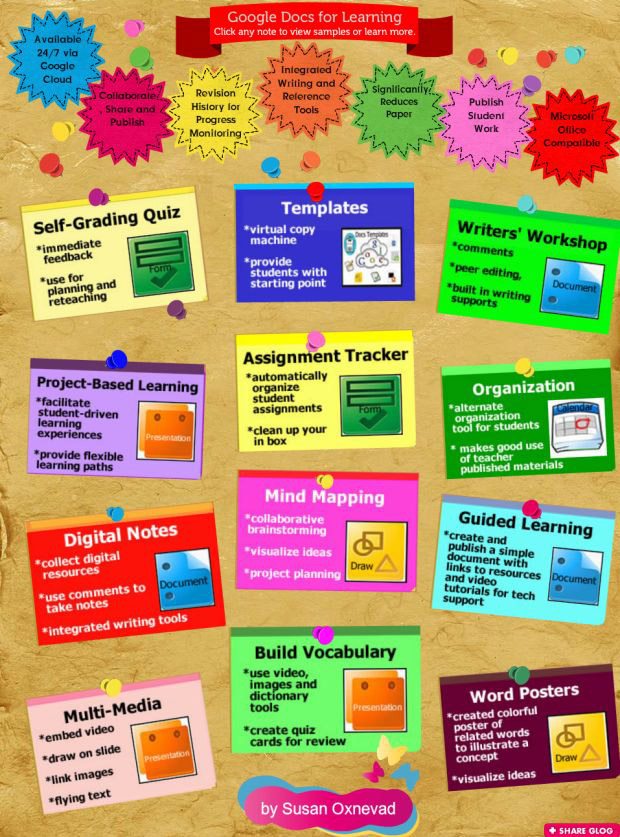
The graphic below gives 12 different ways a teacher can use Google Drive in the classroom. I love the idea of using Google Drive for rubrics (create a form, answer the questions to assess a writing piece, then all answers are automatically stored in a handy spreadsheet that Google automatically creates for you - aka AMAZING!).
5. How? (Basic instructions)
You can find a starter guide for Google Drive here. I am also available to give you a tutorial at your convenience - simply fill out a Technology Coach Request form on my website (https://sites.google.com/site/reestechcenter/teacher-technology-center-requests). I used Google Drive to create my website, request forms, and even this blog! Needless to say, I am a big fan and continually amazed by the possibilities with Google.
In closing, I will leave you with this little video to peak your interest and get you pumped up about collaboration with Google Drive:
Thanks for reading, and have a wonderful Thanksgiving break. I know I am QUITE thankful for this wonderful opportunity to be the Technology Coach at River Eves Elementary, an incredible school!